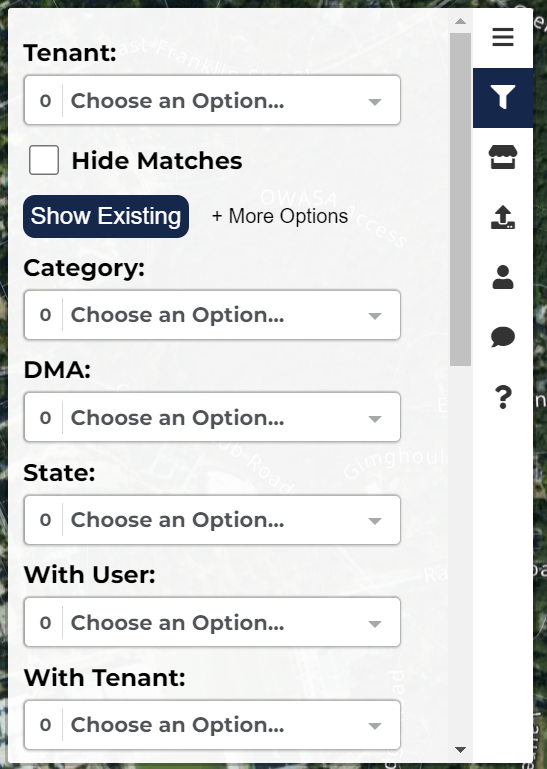
From the homepage select the tab, "Filter Areas/Matches" on the right.
At the top you can select which tenant or tenants you would like to see. If you choose not to select any tenant, then you will simply be shown all of your tenants
You can also choose to hide any existing matches and click more options to select additional currently occupying tenants
Click "Show" to see these current tenants.
The "Category" feature will filter your visible tenants by the category or categories you've selected.
The "DMA" category will filter your visible tenants by the designated market areas you've selected.
Note that you can only select DMA's where you have active hotspots.
"State" allows you to see your hotspots solely in the states you've selected.
"With User" allows you to filter your matches to only show your matches with selected retailers or brokers.
This tab will expand as you gain more matches with other users.
"With Tenant" enables you to filter by your matches with other selected tenants.
"With Category" filters your matches to only show those within general categories.
The "Pre-Approved Co-Tenants" feature filters your matches to show only ones that either have or haven't been pre-approved.
"Approved" is a filter that allows you to filter by either matches you have approved of or haven't approved of.
"Enabled Area" allows you to filter to see all hotspots where matching has been enabled, disabled, or neither.
You can also choose to enable or disable all areas for matching
Note that if hotspots haven't been updated in any way after a year, matching is automatically disabled.
The "Start" and "End" filters enable you to filter your hotspots by those created within the specified date.
Selecting the "Sort" feature will filter by your list of matches by either area or date.